

Appearance
lookup tables
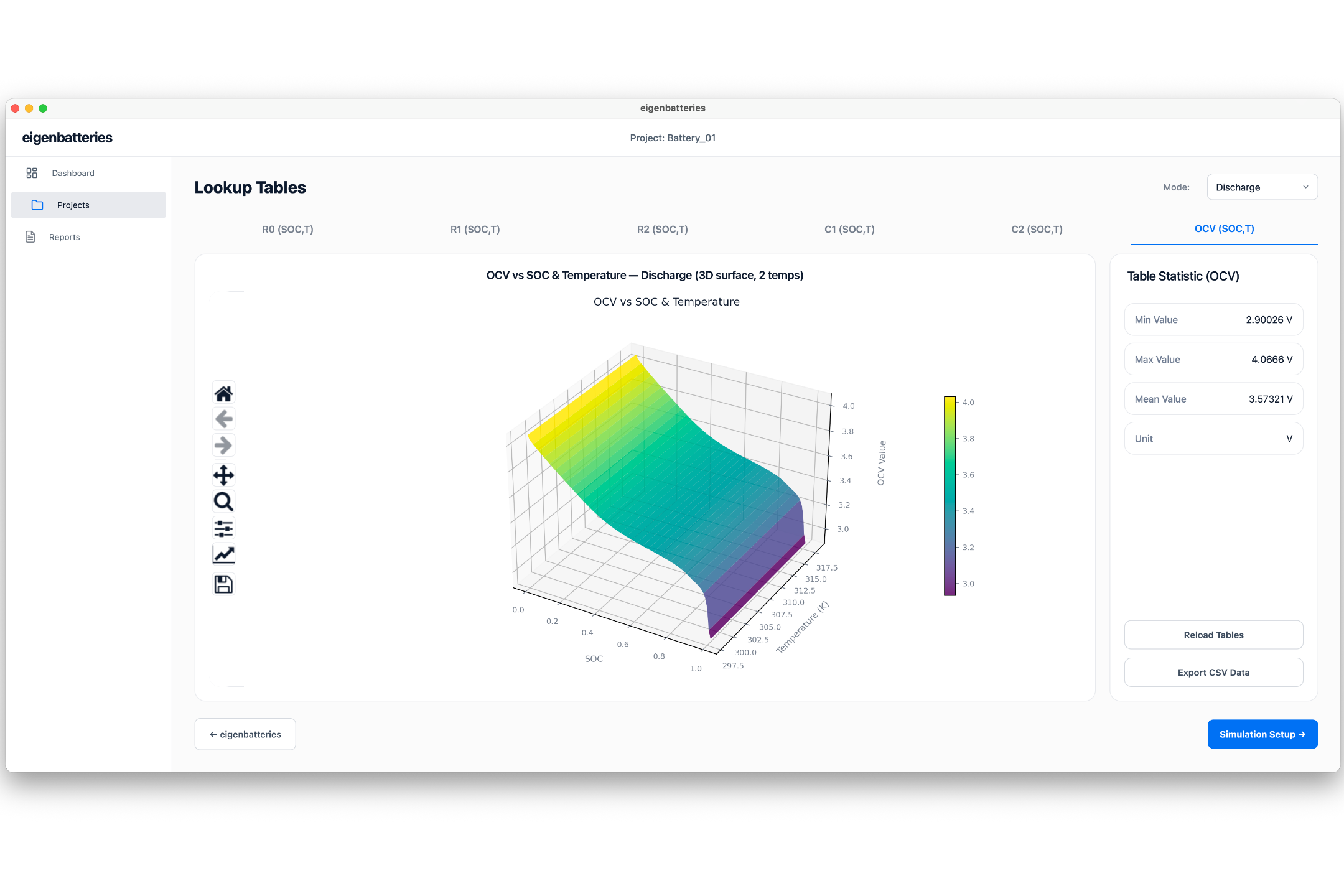
The Lookup Tables page provides visualization and validation of the ECM parameter maps generated during battery characterization.
The extracted parameters are organized as lookup tables with State of Charge (SOC) and Temperature as inputs. These lookup tables are used by the simulation and SOC estimation modules.
Purpose
The Lookup Tables page allows users to:
- Review generated ECM parameters.
- Visualize parameter variation with SOC and temperature.
- Validate extracted parameter values.
- Export lookup table data.
- Verify parameters before simulation.
Available Parameter Tabs
The following lookup tables are available:
- R0 (SOC,T)
- R1 (SOC,T)
- R2 (SOC,T)
- C1 (SOC,T)
- C2 (SOC,T)
- OCV (SOC,T)
Select a tab to view the corresponding parameter map.
Charge and Discharge Modes
The Mode selector allows switching between:
- Charge
- Discharge
The displayed lookup table and statistics update automatically based on the selected mode.
Parameter Visualization
The center panel displays the selected parameter as a three-dimensional surface.
The graph represents:
- SOC variation
- Temperature variation
- Parameter magnitude
Users can rotate, zoom, and pan the graph to inspect parameter behavior across the operating range.
Table Statistics
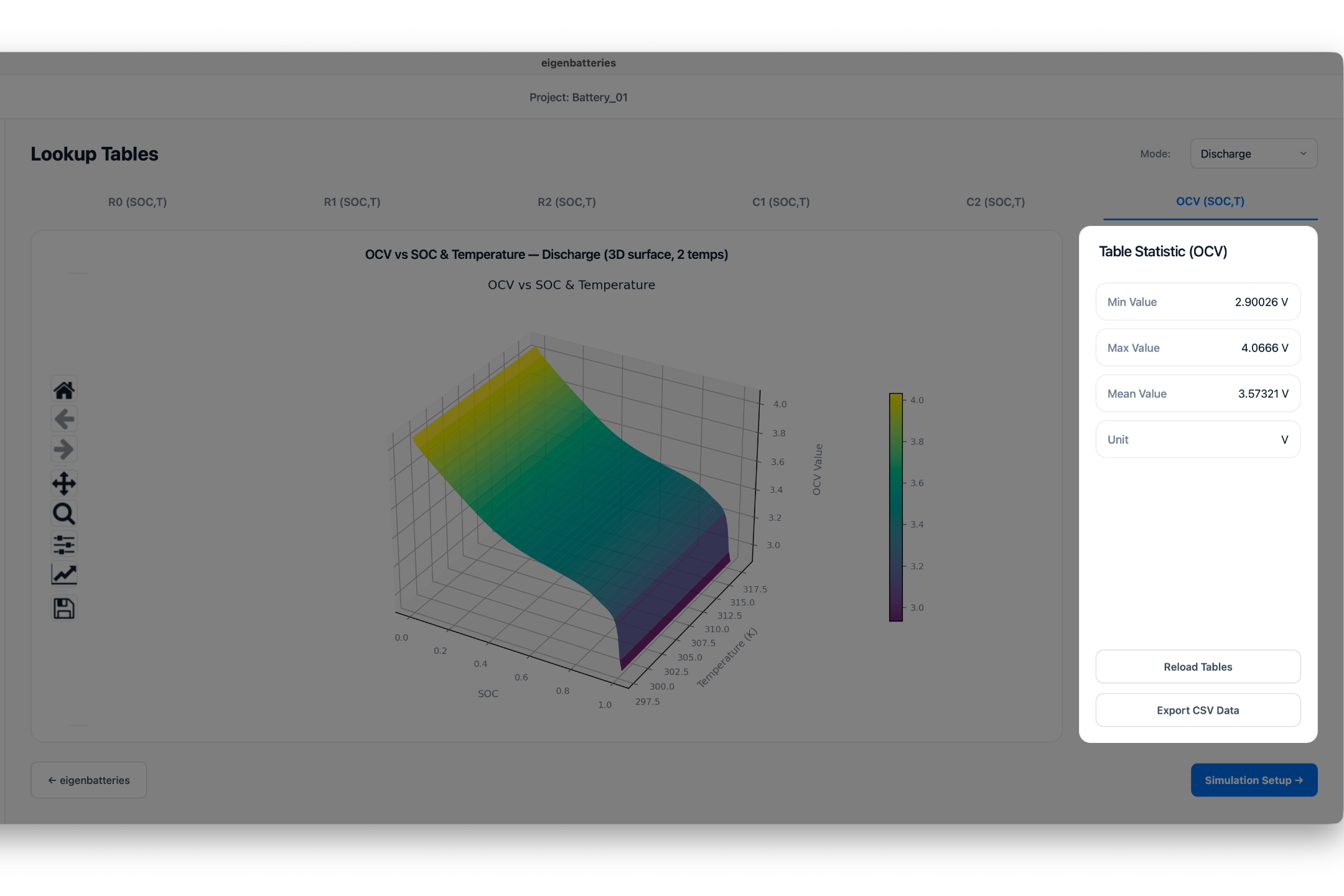
The statistics panel displays summary information for the selected parameter.
Displayed information includes:
- Minimum Value
- Maximum Value
- Mean Value
- Unit
These values provide a quick validation of the generated lookup table.
Validation Guidelines
Before proceeding to simulation, verify that:
- Parameter values are physically reasonable.
- No abnormal spikes or discontinuities exist.
- Parameter trends vary smoothly with SOC and temperature.
- Charge and discharge lookup tables are correctly generated.
Exporting Lookup Tables
To export the displayed lookup table:
- Select the desired parameter tab.
- Click Export CSV Data.
- Choose the save location.
- Save the generated file.
Reloading Tables
If parameters are regenerated, click Reload Tables to refresh the displayed lookup tables.
Proceeding to Simulation
After validating all lookup tables:
- Review each parameter tab.
- Verify the displayed statistics.
- Click Simulation Setup.
The software will open the Battery Simulation module using the generated parameter maps.
Expected Outcome
After completing lookup table validation:
- ECM parameter maps are verified.
- Lookup table data is available for export.
- The battery model is ready for simulation and SOC estimation.