

Appearance
How are datasets uploaded and configured?
After creating a project, battery characterization datasets must be uploaded.
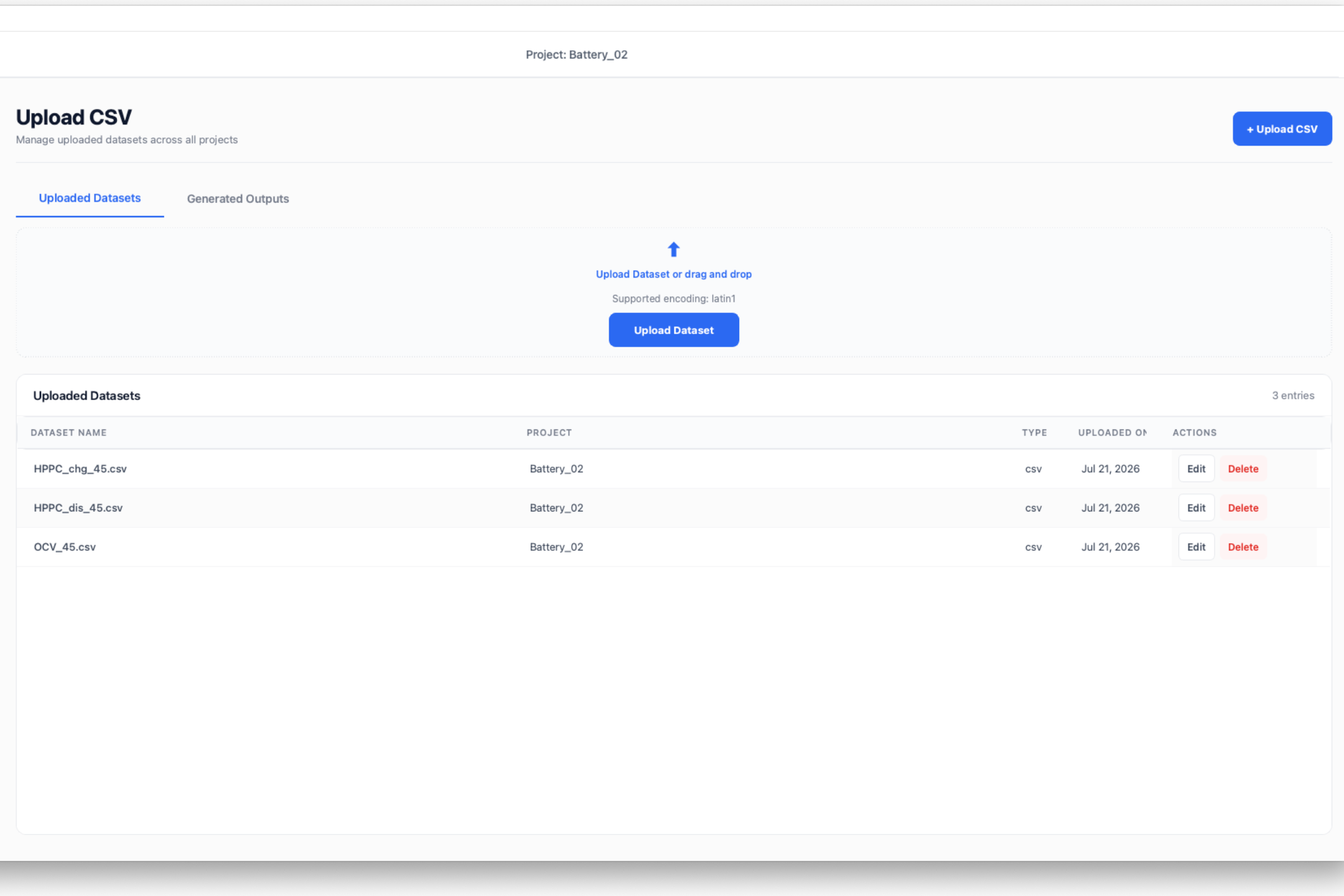
The Upload Datasets page allows users to import battery test files and assign the metadata required for automatic processing.
Purpose
The Upload Datasets page is used to:
- Upload battery test datasets.
- Organize datasets within a project.
- Assign dataset categories.
- Specify test temperatures.
- Review uploaded files.
- Edit dataset information.
- Remove incorrect datasets.
Supported Dataset Types
The software supports battery characterization datasets in CSV format.
The following dataset categories are supported:
| Category | Description |
|---|---|
| OCV | Open Circuit Voltage characterization data |
| HPPC Charge | Charge pulse characterization data |
| HPPC Discharge | Discharge pulse characterization data |
How to upload a dataset ?
Datasets can be uploaded using either of the following methods.
Method 1 – Upload Button
- Click Upload CSV.
- Select the desired dataset file.
- Confirm the file selection.
Method 2 – Drag and Drop
- Drag the CSV files into the upload area.
- Drop the file inside the upload region.
- Wait for the upload process to complete.
After the file is uploaded, the Dataset Metadata dialog automatically opens. 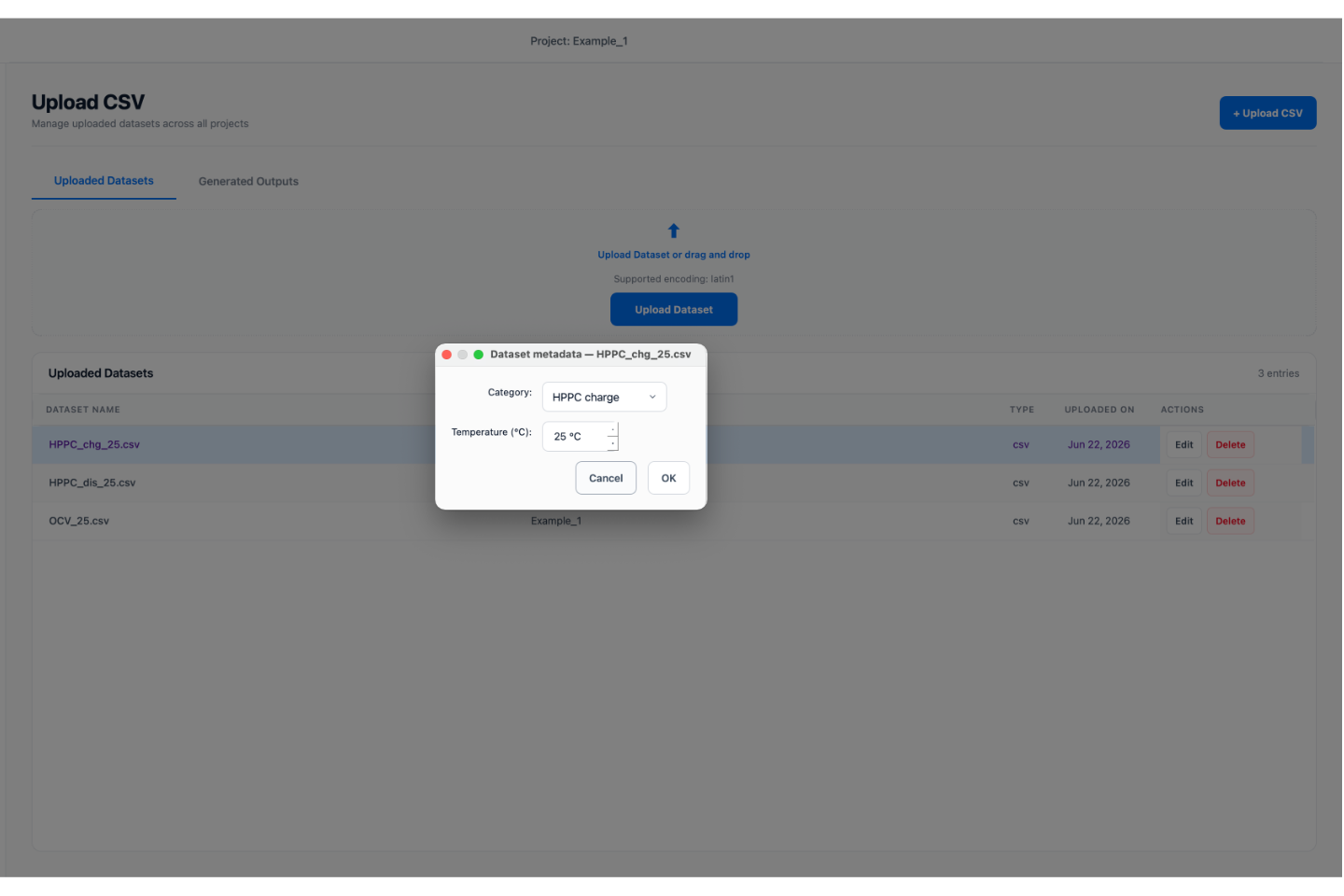
Dataset Metadata Configuration
Each uploaded dataset must be assigned metadata before it can be used for characterization. The name of the file is shown at the top of the "Dataset metadata" assigning box. The Dataset Metadata dialog contains the following fields.
Category
The Category field identifies the type of test data contained in the uploaded file. Available options include:
- OCV
- HPPC Charge
- HPPC Discharge Select the category that matches the uploaded dataset.
Temperature
The Temperature field specifies the test temperature at which the dataset was collected. Examples:
- 25 °C
- 45 °C
- 60 °C Temperature information is required for temperature-dependent parameter extraction and parameter map generation.
Saving Dataset Metadata
After entering the required information:
- Verify the selected category.
- Verify the test temperature.
- Click OK. The dataset will then be added to the project dataset list.
Dataset Management
All uploaded datasets are displayed in the Uploaded Datasets table. The table provides:
| Column | Description |
|---|---|
| Dataset Name | Uploaded file name |
| Project | Associated project |
| Type | File format |
| Uploaded On | Upload date |
| Actions | Dataset management controls |
Editing Dataset Information
To modify dataset metadata:
- Locate the dataset in the table.
- Click Edit.
- Update the dataset information.
- Save the changes.
Deleting a Dataset
To remove a dataset:
- Locate the dataset in the table.
- Click Delete.
- Confirm the deletion request. By clicking Yes on the confirmation dialog box
Warning: Deleted datasets cannot be recovered.
Expected Outcome
After completing dataset upload:
- All required datasets are stored in the project.
- Dataset categories are assigned.
- Temperature information is configured.
- Files are ready for column mapping.
The next stage of the workflow is Column Mapping.