

Appearance
2.2 Upload CSV Files
The user should upload the example files for validation.
Recommended Files for the Example
These files should be imported as the basic validation dataset set for the 25°C case.
Validation Steps
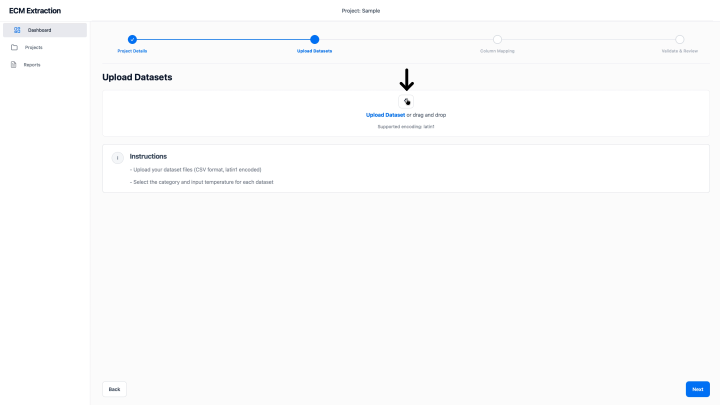
- Open the dataset upload page.
- Select the OCV_25.csv file and upload it.
- After uploading, select the related category from the dropdown on the same page (OCV, HPPC Charge, or HPPC Discharge).
- Enter the corresponding temperature value.
- Click Add Dataset.
- Repeat the same steps for the HPPC_chg_25.csv and HPPC_dis_25.csv files.
- After all datasets are added, click Next.
- Confirm that all files appear in the uploaded dataset list.
- Check that each uploaded file contains at least time, voltage, current, temperature, and SOC-related information.
Expected Result
All selected files should be uploaded successfully and displayed as available datasets.
Acceptance Check
- Each CSV file is accepted by the software.
- The file names appear correctly.
- No file upload error is shown.